Documentation
First Steps
Testing GitHub Webhooks
Use UseWebhook to capture, inspect, and forward GitHub webhooks to your local development server - no public endpoint required.
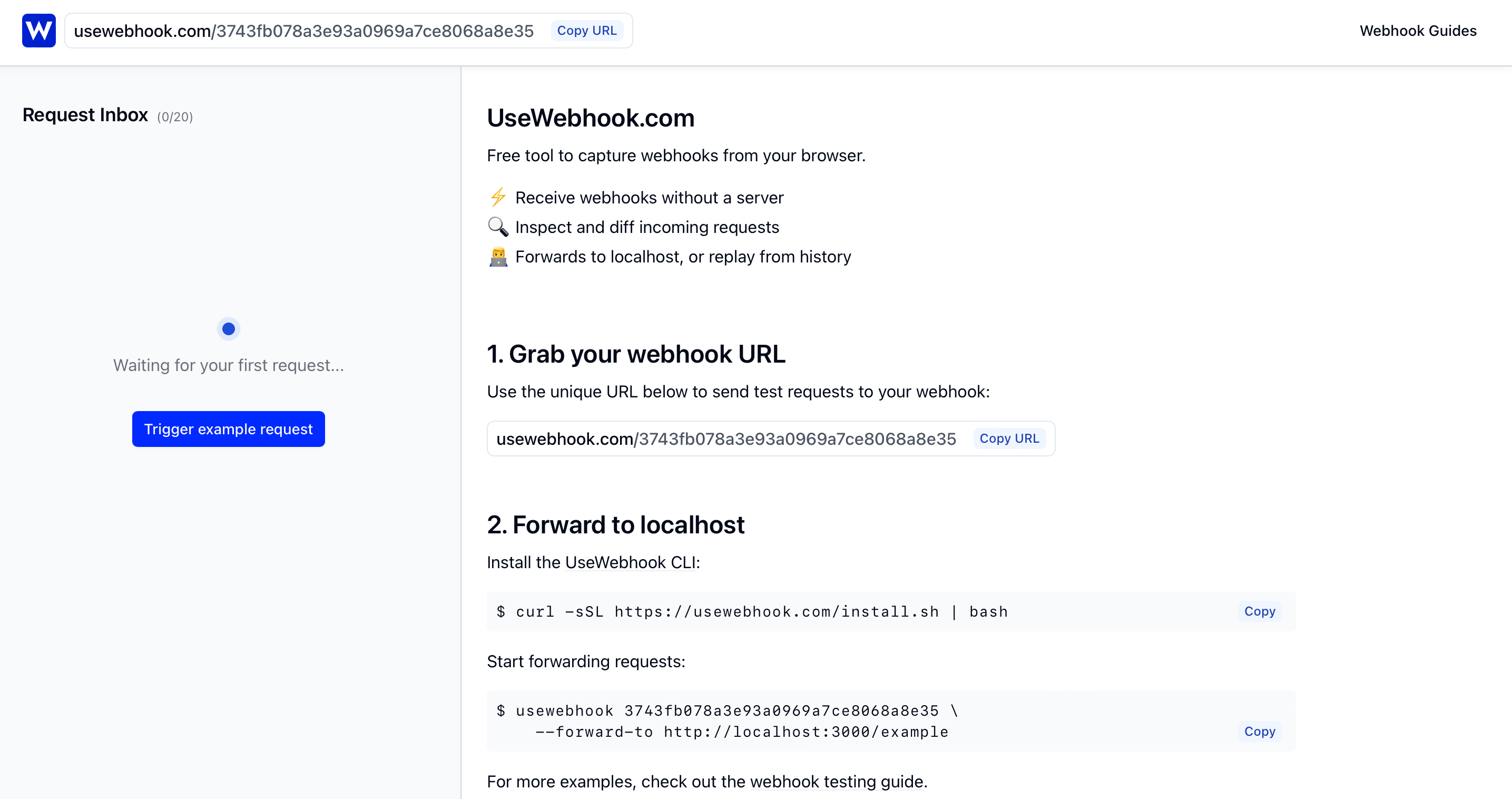
1. Grab your webhook URL
Head to UseWebhook and grab your unique webhook URL. This is the public HTTPS endpoint you'll give to GitHub.
2. Configure GitHub to send webhooks
Go to your GitHub repository, then Settings > Webhooks > Add webhook. Configure it:
- Payload URL: Paste your UseWebhook URL
- Content type:
application/json - Secret: Set a secret string for signature verification (optional but recommended)
- Events: Choose "Let me select individual events" and pick the ones you need (e.g.
push,pull_request,issues,release)
Click Add webhook. GitHub will immediately send a ping event to confirm the endpoint is reachable.
You can also configure webhooks at the organization level under Organization Settings > Webhooks if you want to receive events from all repos in the org.
3. Trigger a test event
You can trigger GitHub webhook events in a few ways:
Using GitHub's redeliver button:
In your repository's Settings > Webhooks, click on your webhook and scroll to Recent Deliveries. You can redeliver any past event by clicking the Redeliver button.
Using real repository activity:
Push a commit, open a pull request, or create an issue. GitHub will fire the corresponding webhook event in real time.
git commit --allow-empty -m "Test webhook" && git push
4. Inspect the webhook payload
After triggering an event, you'll see the request appear in your UseWebhook dashboard. You can inspect the full payload, including:
- Headers: GitHub sends
X-GitHub-Event(event type),X-GitHub-Delivery(unique ID), andX-Hub-Signature-256(HMAC signature) - Body: The JSON payload containing the action, repository, sender, and event-specific data
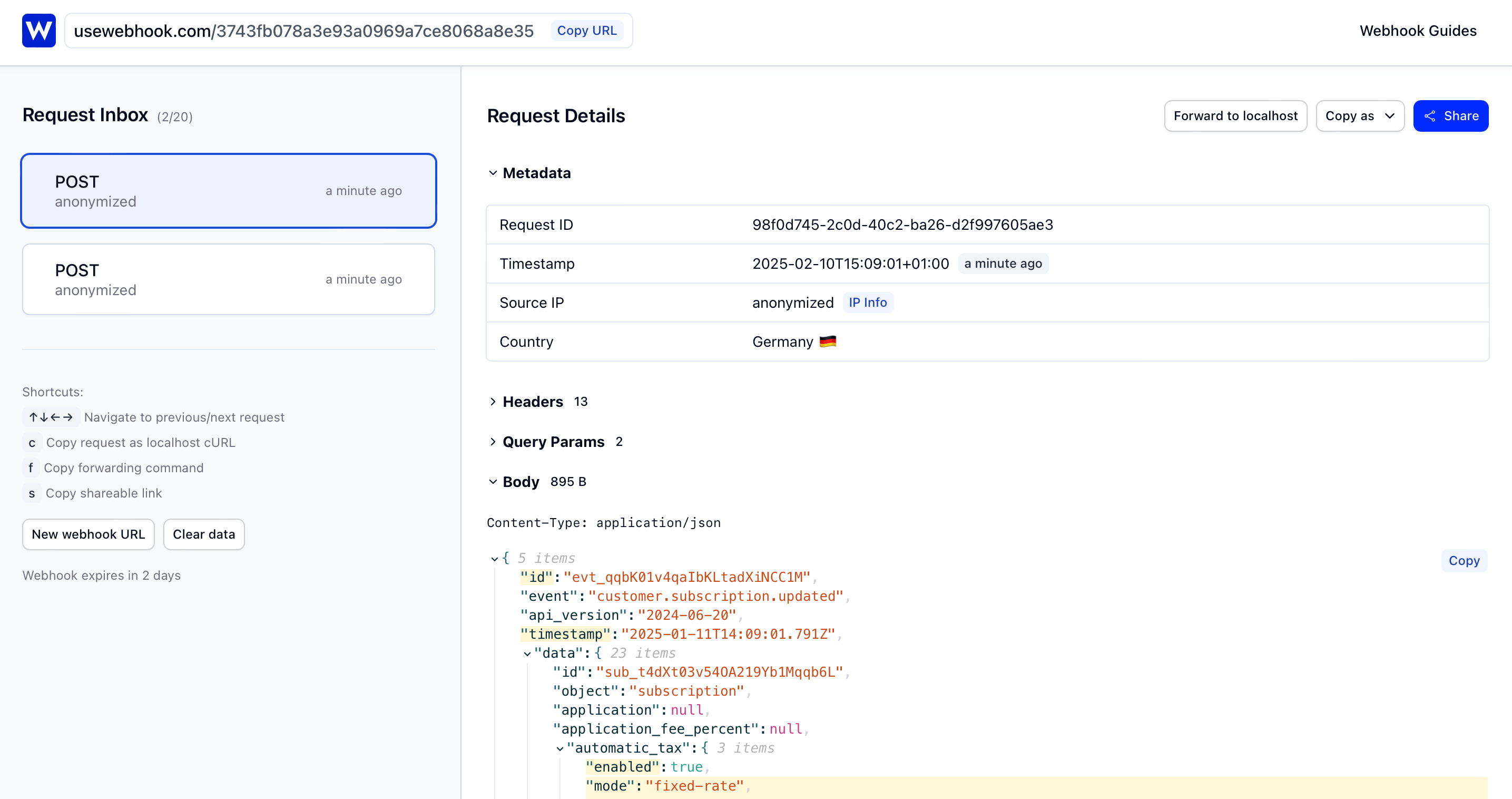
UseWebhook highlights any differences between consecutive requests, making it easy to compare payloads - useful when debugging why a pull_request event with action opened differs from one with action synchronize.
5. Forward to localhost
Now let's forward incoming GitHub webhooks to your local development server. Install the UseWebhook CLI:
curl -fsSL https://usewebhook.com/install.sh | bash
Make sure your local server is running, then start forwarding:
usewebhook $YOUR_WEBHOOK_URL \
  --forward-to http://localhost:3000/webhooks/github/
Replace $YOUR_WEBHOOK_URL with your UseWebhook URL, and adjust the local URL to match your webhook endpoint.
Every GitHub event sent to your UseWebhook URL will now be forwarded to your local server.
6. Replay from webhook history
UseWebhook stores a history of all requests, so you can replay any GitHub event at any time. This is useful for:
- Reproducing bugs without making real commits or PRs
- Testing how your handler responds to different event types
- Iterating on your webhook logic without waiting for GitHub
Grab the request ID from your UseWebhook dashboard:
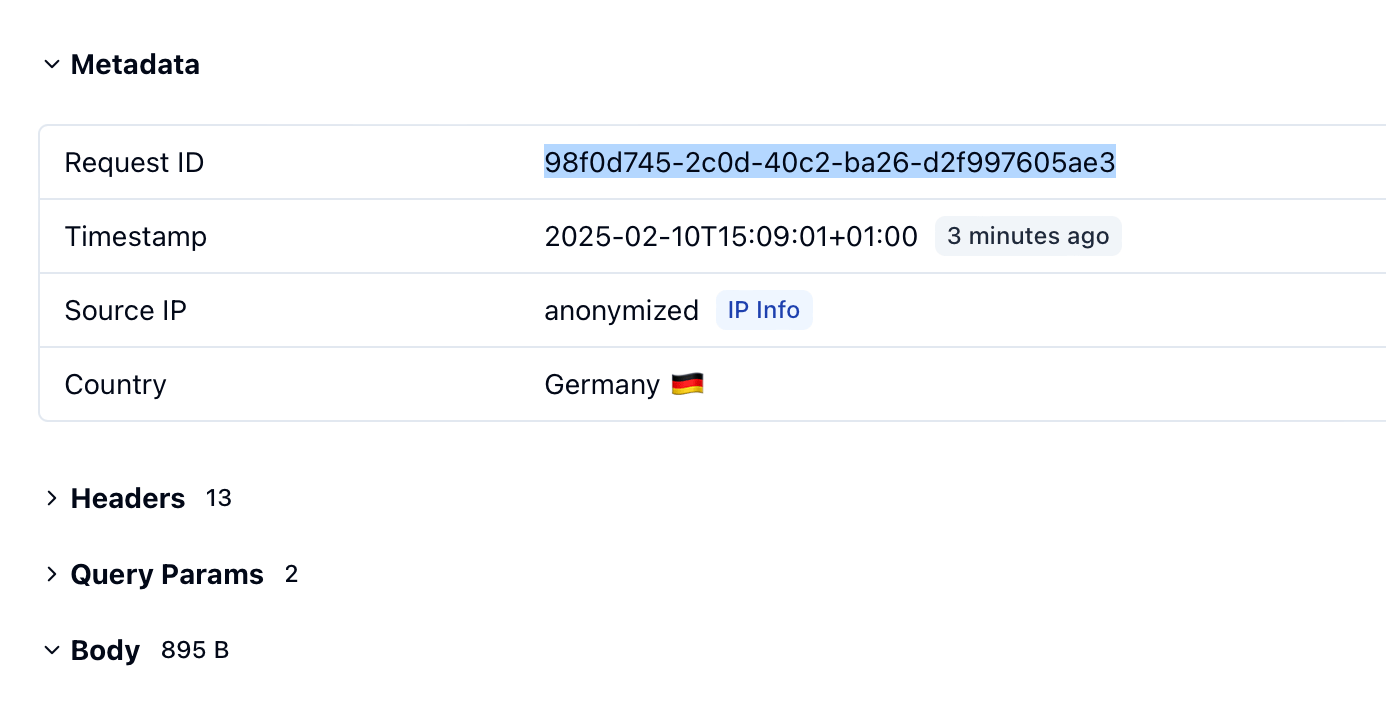
Then replay it:
usewebhook $YOUR_WEBHOOK_URL \
  --request-id $REQUEST_ID \
  --forward-to http://localhost:3000/webhooks/github/
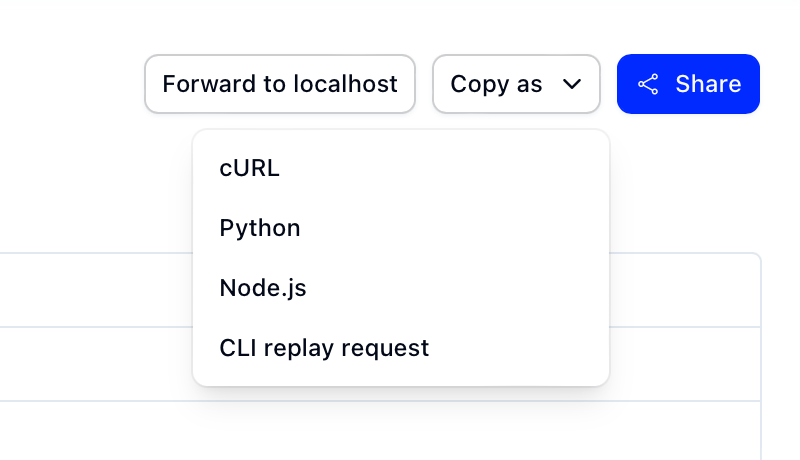
You can also copy the full command from the dashboard using the "Copy as" dropdown.
Tips for testing GitHub webhooks
- Validate signatures. GitHub signs every webhook with HMAC-SHA256 using your secret. Always verify the
X-Hub-Signature-256header in your handler. - Check the event type. Use the
X-GitHub-Eventheader to route events to the right handler, rather than parsing the body first. - Handle multiple actions. Many GitHub events have an
actionfield (e.g.opened,closed,synchronizefor pull requests). Make sure your handler accounts for each action you care about. - Watch for large payloads. Push events with many commits can produce large payloads. GitHub truncates pushes with more than 20 commits.
Conclusion
With UseWebhook, you can test GitHub webhooks without deploying to a public server. Capture events in your browser, forward them to localhost, and replay them as many times as you need.
Ready to try it out? Grab your webhook URL.