Documentation
First Steps
Testing Slack Webhooks
Use UseWebhook to capture, inspect, and forward Slack webhook events to your local development server - no public endpoint required.
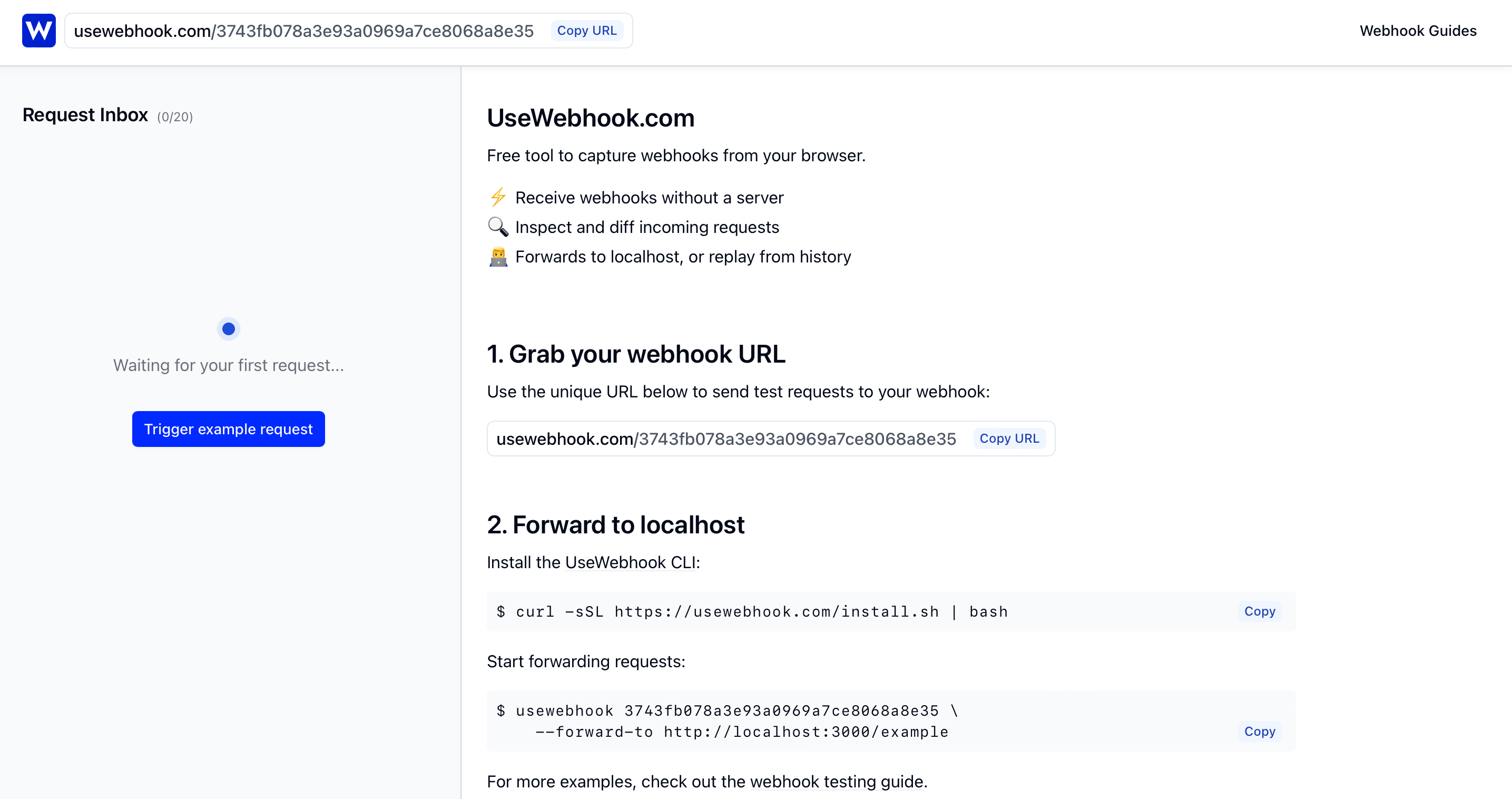
1. Grab your webhook URL
Head to UseWebhook and grab your unique webhook URL. This is the public HTTPS endpoint you'll give to Slack.
2. Configure Slack to send events
Go to the Slack API dashboard, select your app (or create one), and configure event delivery:
For Event Subscriptions:
Navigate to Event Subscriptions, toggle it on, and paste your UseWebhook URL as the Request URL. Then subscribe to the bot events you need (e.g. message.channels, app_mention, reaction_added).
Note: Slack will send a URL verification challenge when you save the Request URL. You'll need your local server running and forwarding (see step 5) to respond to this challenge, or you can temporarily set up a simple endpoint that echoes back the challenge field.
For Slash Commands:
Navigate to Slash Commands and create a new command. Set the Request URL to your UseWebhook URL.
For Interactive Components:
Navigate to Interactivity & Shortcuts, toggle it on, and set the Request URL to your UseWebhook URL.
3. Trigger a test event
You can trigger Slack webhook events in a few ways:
Using your Slack workspace:
Send a message in a channel your app is in, mention your app with @yourapp, use a slash command, or react to a message. Slack will fire the corresponding event.
Using the Slack API:
Post a message to a channel using the Slack API, which can in turn trigger events if your app is subscribed.
curl -X POST https://slack.com/api/chat.postMessage \
  -H "Authorization: Bearer $SLACK_BOT_TOKEN" \
  -H "Content-Type: application/json" \
  -d '{"channel": "C01EXAMPLE", "text": "Testing webhooks!"}'
4. Inspect the webhook payload
After triggering an event, you'll see the request appear in your UseWebhook dashboard. You can inspect the full payload, including:
- Headers: Slack sends
X-Slack-Signature(HMAC signature) andX-Slack-Request-Timestampused for request verification - Body: The JSON payload containing the event type, team info, and event-specific data
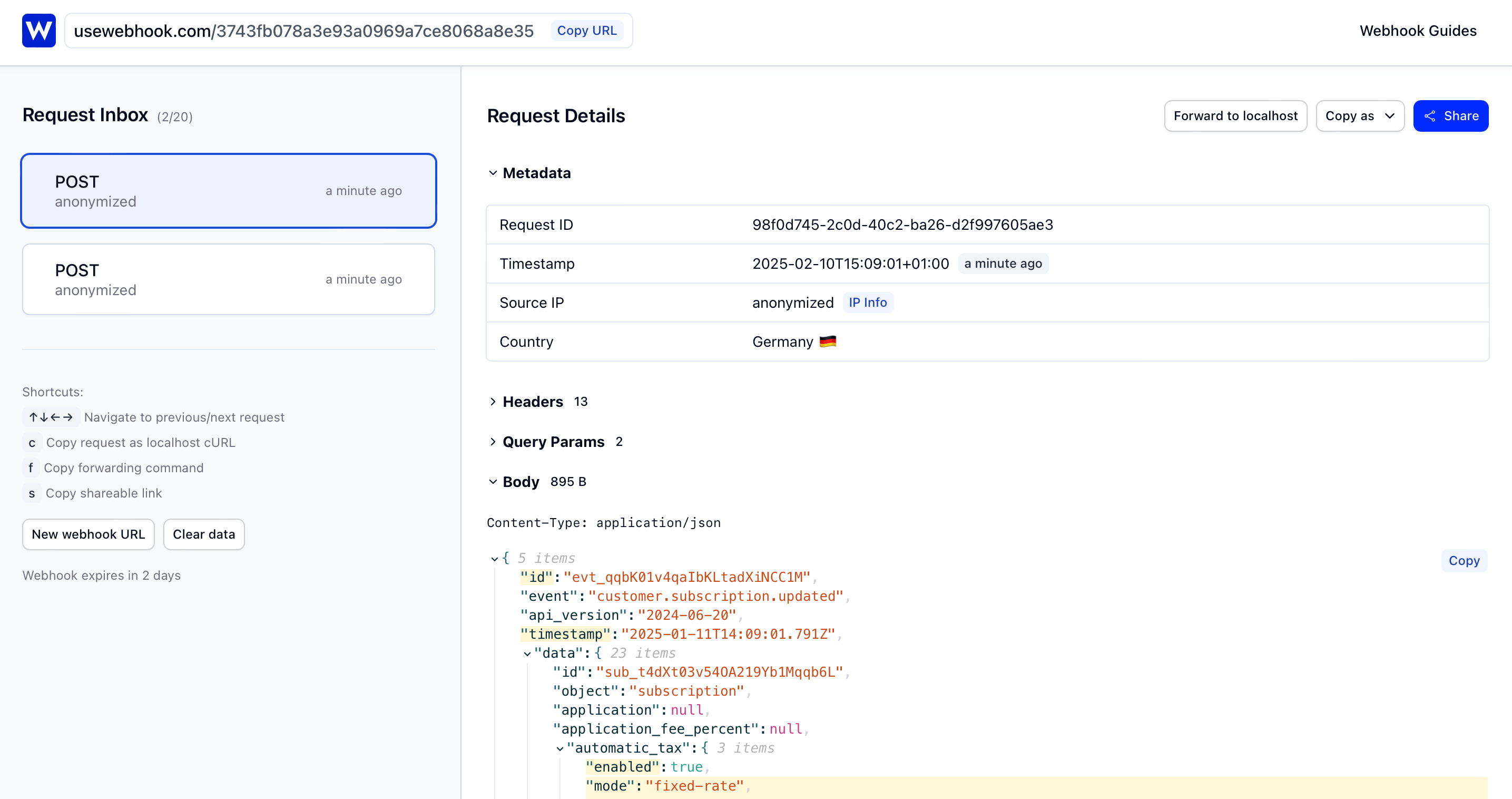
UseWebhook highlights any differences between consecutive requests, making it easy to compare payloads - useful when debugging how different event types like message and app_mention are structured.
5. Forward to localhost
Now let's forward incoming Slack events to your local development server. Install the UseWebhook CLI:
curl -fsSL https://usewebhook.com/install.sh | bash
Make sure your local server is running, then start forwarding:
usewebhook $YOUR_WEBHOOK_URL \
  --forward-to http://localhost:3000/webhooks/slack/
Replace $YOUR_WEBHOOK_URL with your UseWebhook URL, and adjust the local URL to match your webhook endpoint.
Every Slack event sent to your UseWebhook URL will now be forwarded to your local server.
6. Replay from webhook history
UseWebhook stores a history of all requests, so you can replay any Slack event at any time. This is useful for:
- Reproducing bugs without spamming your Slack workspace
- Testing how your handler responds to different event types
- Iterating on your webhook logic without waiting for Slack
Grab the request ID from your UseWebhook dashboard:
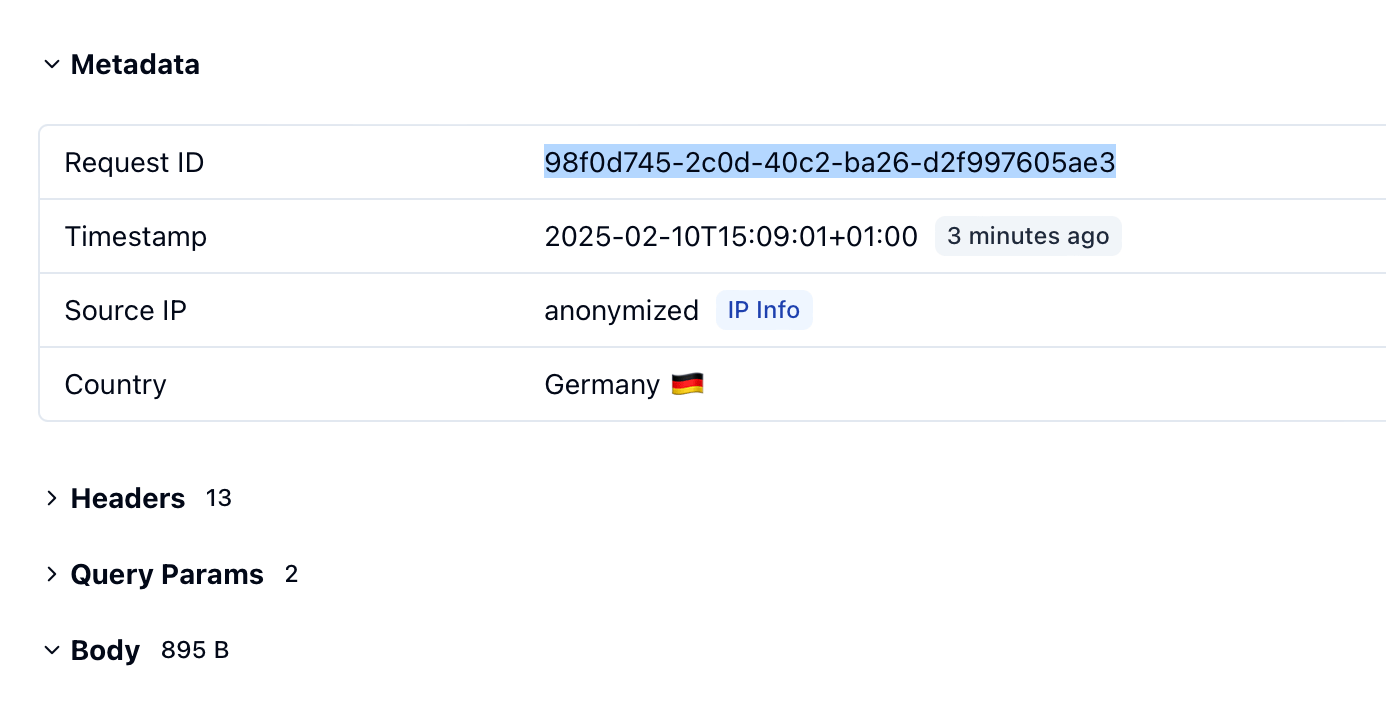
Then replay it:
usewebhook $YOUR_WEBHOOK_URL \
  --request-id $REQUEST_ID \
  --forward-to http://localhost:3000/webhooks/slack/
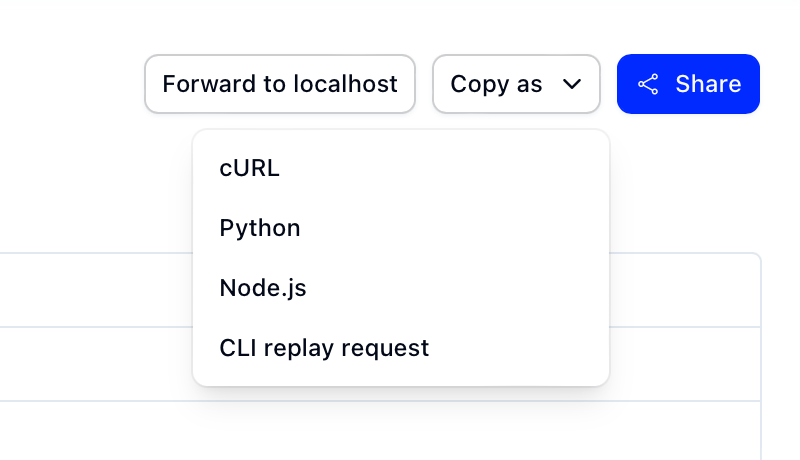
You can also copy the full command from the dashboard using the "Copy as" dropdown.
Tips for testing Slack webhooks
- Verify request signatures. Slack signs every request using HMAC-SHA256 with your app's signing secret. Always verify the
X-Slack-Signatureheader to ensure requests are authentic. - Respond within 3 seconds. Slack expects a response within 3 seconds. For longer tasks, respond with a
200immediately and process the event asynchronously. - Handle retries. Slack retries events up to 3 times if it doesn't receive a
200response. Check for theX-Slack-Retry-Numheader to detect retries and avoid duplicate processing. - Use a test workspace. Create a separate Slack workspace for development to avoid disrupting your team with test messages and events.
Conclusion
With UseWebhook, you can test Slack webhooks without deploying to a public server. Capture events in your browser, forward them to localhost, and replay them as many times as you need.
Ready to try it out? Grab your webhook URL.